
Your Briefings
The Scoop Portal
Go from the performance of your district to the next action at a location
The Scoop portal puts your management briefing and the location briefings beneath it in one place. Start with the priorities across your part of the business, then open a location to understand its situation and decide what to do next. You can use it at your desk or on your phone during a visit.
This guide describes the portal features available in the current release. We agree online access and response options during your rollout. The scorecard, charts, and trend lines shown depend on the measures and supporting data included in your briefings.
Take a tour with a complete example
Explore a Scoop Performance Briefing follows one fictional district through the current portal. The scenes below use that same example; all locations and figures are fictional.
Start with the management conclusion
Your district or area page opens with a conclusion about performance this cycle. The severity summary shows how the locations are distributed across the ratings. Read the main priority and the summary to understand where to focus.
The summary connects the findings across locations. It helps you distinguish a shared operating issue from a problem that calls for attention at one location.
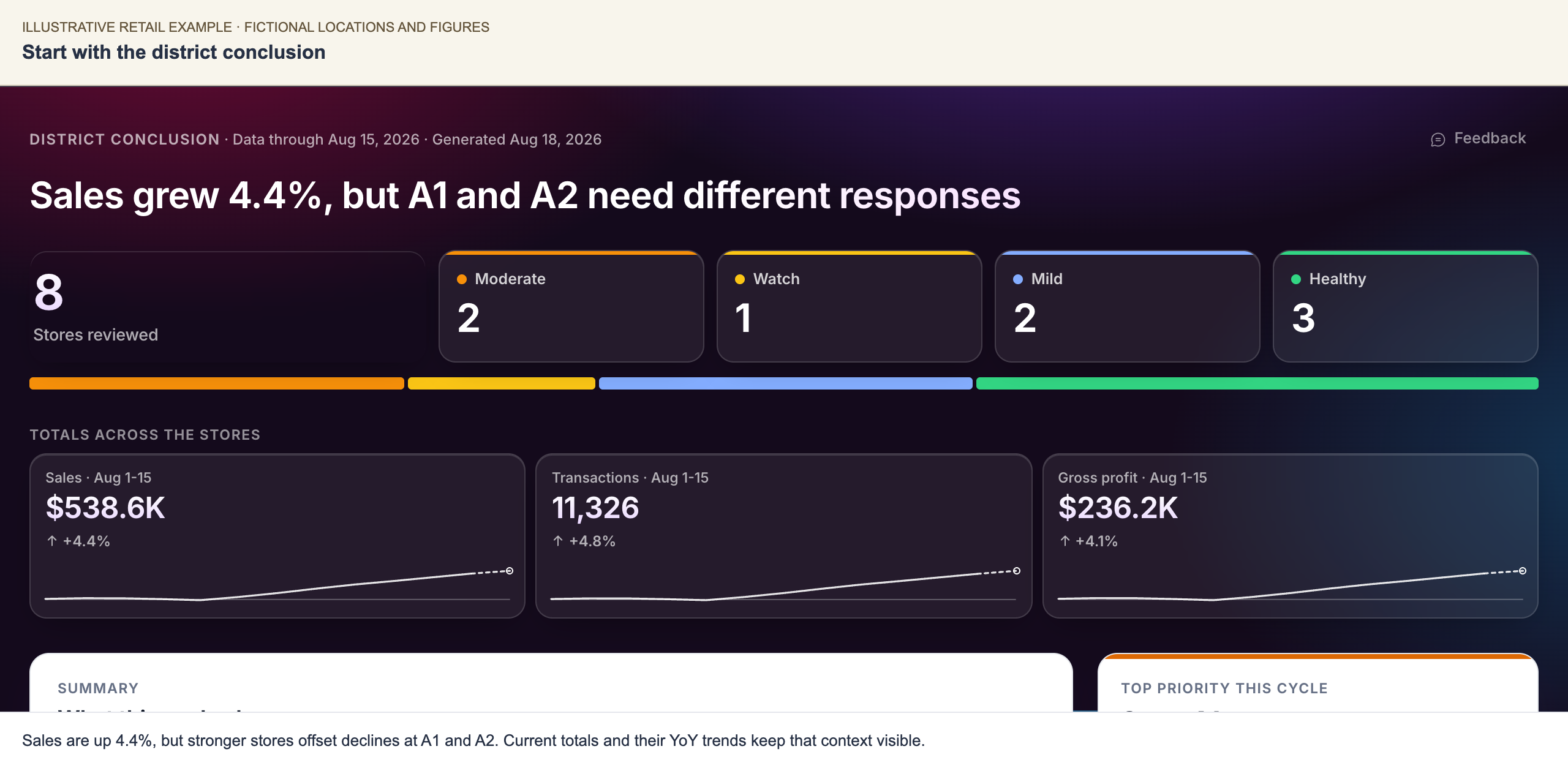
The total tiles combine the locations in scope. In this example, district growth offsets weakness at A1 and A2.
Where included, district totals show the combined current performance and its change against the comparator period. Their small trend lines show the history of that YoY change. A district's growth is calculated from aggregate current and prior values.
Read the district scatter
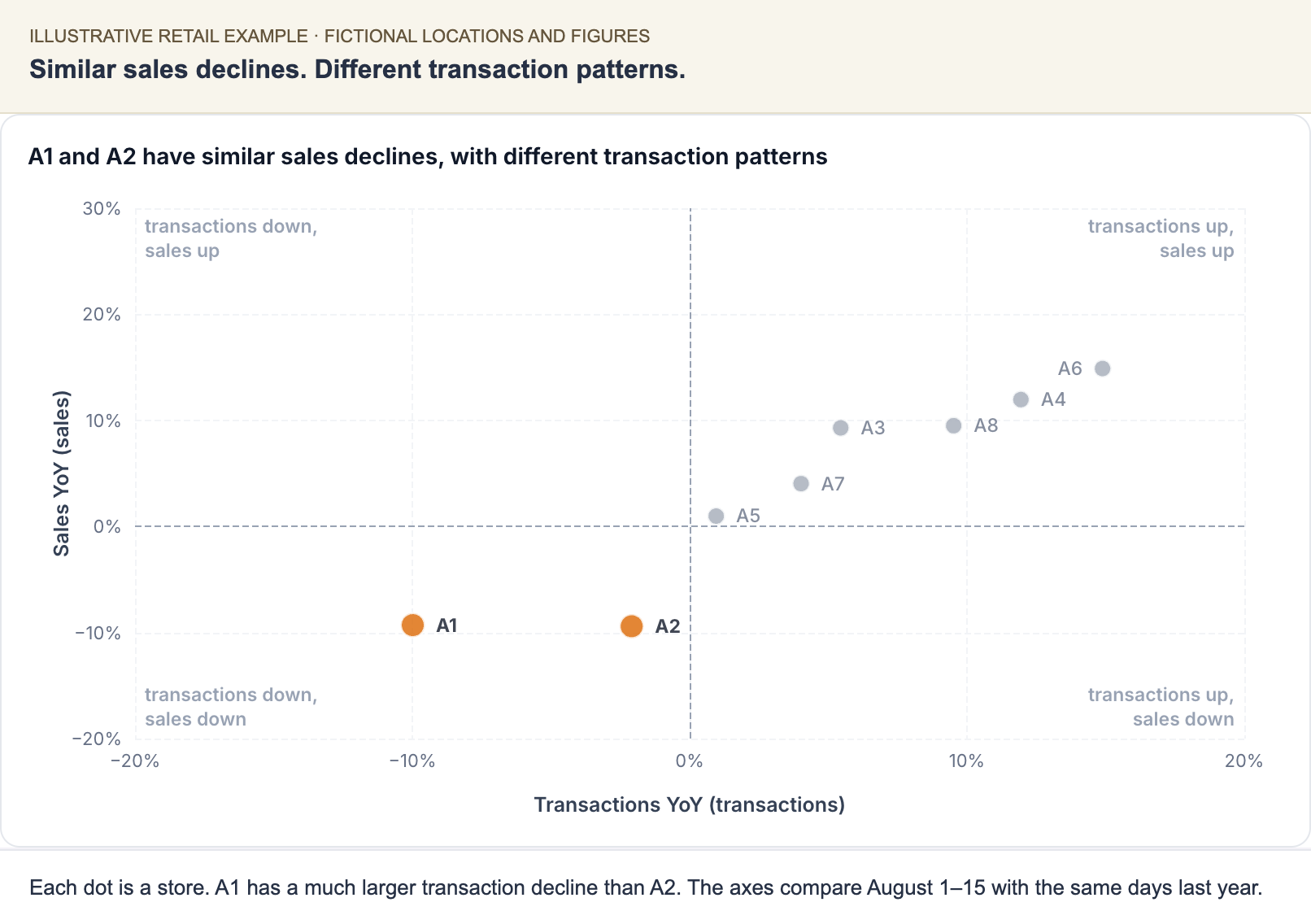
Each dot is a location. The two selected measures and the chart title explain the comparison.
Use the scatter to spot locations with different combinations of results. Read the axis labels and comparison basis before interpreting a quadrant. Dividing lines can mark zero for changes or the median of the displayed locations for levels; the chart explains median lines where used. Named locations receive emphasis, with other locations retained for context. A scatter appears when the briefing contains a suitable comparison; it is not present in every report.
Compare locations, then open the one you need
The scorecard puts locations in rows and key measures in columns. You can see where a location is strong and where it trails the others on that page. Short notes explain important context that the numbers alone don't show.
Each shaded cell shows whether the location falls in the top, middle, or bottom third for that measure among the locations on the page. The comparison accounts for whether a higher or lower value is favorable. This is a relative comparison for one measure, separate from the location's overall severity rating.
Select a row to open that location's briefing when one is available. Use the severity rating and the explanation together to decide which location needs your attention first.
Understand the local result
The location page opens with its main finding and key figures. Where a figure includes a trend line, the line shows how its change against the same period last year has developed over recent months. This helps you see whether the comparison is improving or deteriorating. An unfinished final month is marked with a dashed segment.
Further down, the analysis works through the questions behind the finding. Charts sit alongside the relevant explanation:
- The title states the finding. Read it first to understand what the chart is showing you.
- Marked periods or categories point to the evidence. Use them to see where the change is concentrated.
- The same measure keeps its color across the page. This helps you follow it from one comparison to another.
Read the dates and comparison labels with the chart. A month so far and a completed month cover different amounts of time.
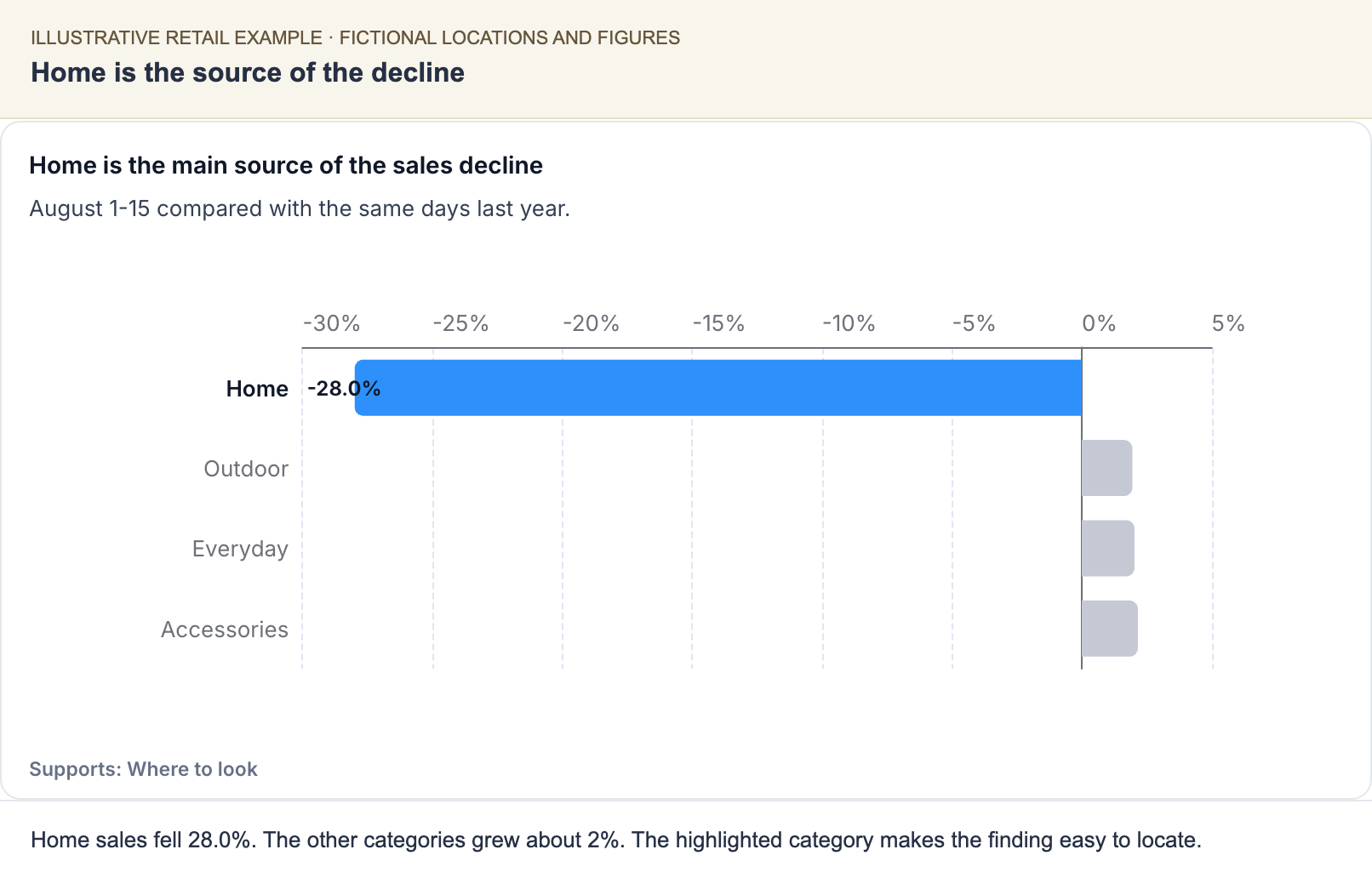
The chart highlights Home while retaining the other categories for context. See Reading Your Briefing for dates, comparisons, and shading.
Prepare for the visit
Use the briefing's visit questions to decide what to ask the location manager and what to inspect. The analysis gives you the reason for each check, so you can arrive with a specific question grounded in the location's performance.
Take the affected category or activity and the comparison period into the discussion. For example, if transactions are weakening in one category, review that category with the manager and ask what changed in availability or customer activity. The purpose is to resolve the question left open by the figures and select an appropriate response. Inside a Scoop Investigation follows an illustrative case through this process.
Where the data cannot settle the cause, the recommended check helps you investigate it with the team. A healthy location may instead have a strength to protect or a condition to monitor.
Decide on the recommended actions
Each action explains why it was selected, what to do, and the intended goal. Where responses are enabled, you can Accept, Defer, or Reject it. Accept with changes lets you record an adjustment. Add the local context that explains your decision.
When earlier commitments are present, review them and record their current status before taking on new actions. See Working with Action Plans for the meaning of each response and status.
Read the briefing on a phone
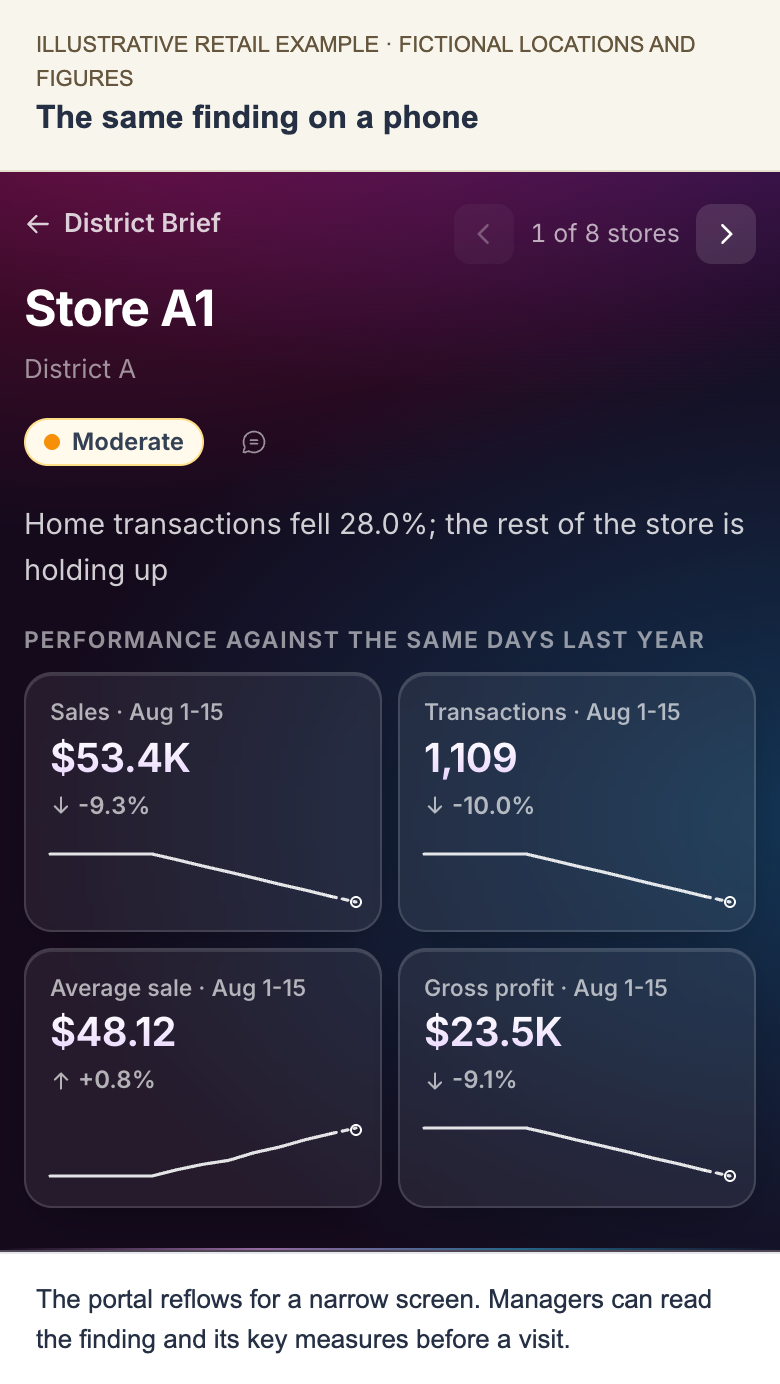
The same fictional finding in the portal's responsive layout. On narrow screens, the content reflows and wide comparisons may scroll horizontally.
Use the location finding and key questions to prepare for a visit, then return to the supporting evidence during the discussion.
Give feedback where you find the issue
Use Feedback on the page, choose the part you are commenting on, and explain what should change. You can point to a finding that needs correction or add context that the briefing did not capture. Our team reviews that feedback with you.
The portal shows the reporting cycle's published briefing. Check its data date when discussing a recent event with the team. Reading Your Briefing explains the dates, ratings, and comparisons in more detail.
Related: What You Receive · Working with Action Plans · Release Notes