

Microsoft Dynamics 365
Analyze CRM, ERP, and customer engagement data with AI-powered insights

Connect Microsoft Dynamics 365 to Scoop for sophisticated sales pipeline analysis, customer journey tracking, and cross-functional business insights. Snapshot CRM data to track changes over time, blend with ERP and marketing systems, and gain AI-powered analysis across your entire Microsoft ecosystem.
What You Can Analyze
| Dynamics Module | Analysis Types |
|---|---|
| Sales | Pipeline progression, deal velocity, win/loss analysis, forecast accuracy |
| Customer Service | Case resolution, SLA compliance, customer satisfaction trends |
| Marketing | Campaign performance, lead conversion, customer journey |
| Field Service | Work order completion, resource utilization, service efficiency |
| Finance & Operations | Revenue trends, order fulfillment, inventory levels |
Why Connect Dynamics 365 to Scoop
| Capability | Benefit |
|---|---|
| Snapshot Analysis | Track how opportunities, cases, and accounts change over time |
| Cross-Module Blending | Combine Sales + Service + Finance for 360° customer view |
| External Data Integration | Join Dynamics with marketing platforms, support tools, spreadsheets |
| AI-Powered Insights | Natural language queries against your Dynamics data |
| Process Visualization | Sankey diagrams showing deal flow and customer journeys |
Connecting to Dynamics 365
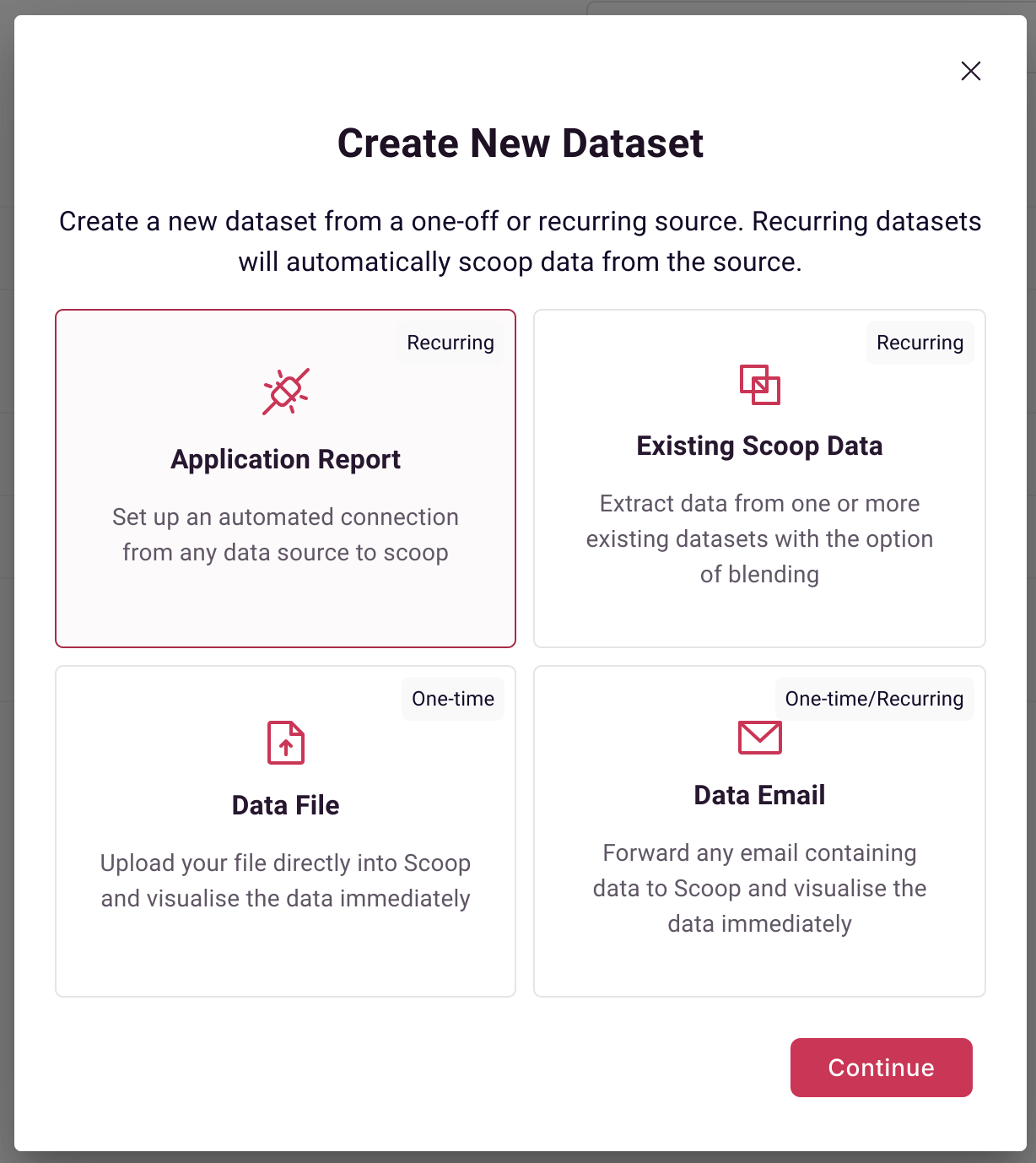
Step 1: Select Applications Source
On the datasets page, select Applications as a source:
Step 2: Select Microsoft Dynamics 365
Choose Dynamics 365 from the application list:
Step 3: Choose Dataset Type
Select whether your data should be snapshotted or treated as transactional:
| Type | Use When | Examples |
|---|---|---|
| Snapshot | Entity records that change over time | Opportunities, Accounts, Cases, Leads |
| Transactional | Event records that don't change | Activities, Emails, Phone Calls |
Step 4: Authorize Access
Complete the OAuth flow to grant Scoop access to your Dynamics 365 environment:
- Click Connect to Dynamics 365
- Sign in with your Microsoft credentials
- Grant permissions for the requested scopes
- Return to Scoop
Step 5: Select Entity and Fields
Choose the Dynamics entity and specific fields to extract:
| Popular Entities | Description |
|---|---|
| Opportunity | Sales pipeline deals |
| Account | Customer/company records |
| Contact | Individual people |
| Lead | Prospective customers |
| Case | Customer service incidents |
| Quote | Sales quotes |
| Order | Sales orders |
| Invoice | Customer invoices |
Step 6: Configure and Extract
- Name your dataset descriptively (e.g., "Dynamics Opportunities")
- Enable Extract data now for immediate sync
- Scoop automatically syncs overnight daily
Available Data Objects
Sales Module
| Entity | Key Fields | Snapshot? |
|---|---|---|
| Opportunity | opportunityid, name, estimatedvalue, stepname, closeprobability, actualclosedate | Yes |
| Lead | leadid, fullname, leadqualitycode, statuscode, estimatedvalue | Yes |
| Quote | quoteid, totalamount, statecode, effectivefrom, effectiveto | Yes |
| Order | salesorderid, totalamount, ordernumber, submitdate | No |
| Account | accountid, name, revenue, numberofemployees, industrycode | Yes |
| Contact | contactid, fullname, emailaddress1, jobtitle | Yes |
Customer Service Module
| Entity | Key Fields | Snapshot? |
|---|---|---|
| Case | incidentid, title, prioritycode, statuscode, ownerid, createdon | Yes |
| Entitlement | entitlementid, name, remainingterms, startdate, enddate | Yes |
| Knowledge Article | knowledgearticleid, title, statecode, rating | No |
Marketing Module
| Entity | Key Fields | Snapshot? |
|---|---|---|
| Campaign | campaignid, name, budgetedcost, actualcost, expectedresponse | Yes |
| Campaign Response | activityid, responsecode, customer, createdon | No |
| Marketing List | listid, listname, membercount, type | Yes |
Recommended Fields by Entity
For Opportunity Analysis
| Field | Purpose |
|---|---|
| opportunityid | Unique identifier for snapshotting |
| name | Deal name |
| stepname | Current pipeline stage |
| estimatedvalue | Deal amount |
| closeprobability | Win likelihood |
| estimatedclosedate | Forecast date |
| actualclosedate | When deal closed |
| ownerid | Assigned sales rep |
| createdon | Age calculation |
| modifiedon | Activity tracking |
| statecode | Open/Won/Lost |
| parentaccountid | Account linkage |
For Case Analysis
| Field | Purpose |
|---|---|
| incidentid | Unique identifier |
| title | Case description |
| prioritycode | Urgency level |
| statuscode | Current status |
| ownerid | Assigned agent |
| createdon | Case age |
| resolvedon | Resolution time |
| customerid | Customer linkage |
| productid | Related product |
Snapshot Analysis
Configure as Snapshot dataset to track entity changes over time.
What Snapshotting Enables
| Analysis | Description |
|---|---|
| Pipeline movement | How opportunities progress through stages |
| Velocity metrics | Time spent in each stage |
| Conversion rates | Stage-to-stage win percentages |
| Case aging | How long cases remain unresolved |
| Account health trends | How account metrics change |
Snapshot Examples
Opportunity Stage Progression:
- See exactly when deals moved from Qualify → Develop → Propose → Close
- Calculate average time in each stage
- Identify bottlenecks where deals stall
Case Resolution Tracking:
- Track case status changes: New → In Progress → Waiting → Resolved
- Measure SLA compliance over time
- Identify agents with fastest resolution
See Snapshot Datasets for details.
Use Cases: Dynamics Only
Enhanced Sales Reporting
Move beyond Dynamics' built-in dashboards:
| Native Dynamics | With Scoop |
|---|---|
| Current pipeline value | Pipeline value over time |
| Win rate (current) | Win rate trends by period |
| Deals by stage | Stage progression patterns |
| Rep performance | Rep performance trends |
Pipeline Process Analysis
Deep dive into sales process health:
- Waterfall reports: What's been added, won, lost, or resized this period
- Stage conversion funnels: Where deals drop off
- Cycle time analysis: How long deals spend in each stage
- Forecast accuracy: Predicted vs. actual close dates
Customer Journey Mapping
Understand the full lifecycle:
- Lead → Opportunity → Customer progression
- Conversion rates at each stage
- Time to convert by lead source
- Customer engagement patterns
Blending Dynamics with Other Data
Dynamics + Marketing Automation
Goal: Connect campaigns to revenue
| Dynamics Data | Marketing Data | Combined Insight |
|---|---|---|
| Opportunity source | Campaign spend | CAC by campaign |
| Deal close dates | Campaign timing | Attribution analysis |
| Win/loss outcomes | Lead scores | Lead quality validation |
Examples:
- HubSpot campaigns → Dynamics opportunities
- Marketo leads → Dynamics conversions
- Google Ads → Dynamics revenue
Dynamics + Finance (NetSuite, QuickBooks)
Goal: Complete financial visibility
| Analysis | Data Required |
|---|---|
| True CAC | Marketing spend + Sales effort + Dynamics wins |
| Revenue recognition | Dynamics close dates + Invoice timing |
| Customer profitability | Dynamics deals + Actual costs |
Dynamics + Customer Service (Zendesk, Freshdesk)
Goal: 360° customer view
- Sales activity → Support ticket volume
- Deal complexity → Service costs
- Customer segment → Support needs
- Churn risk scoring from combined signals
Dynamics + Product (Mixpanel, Amplitude)
Goal: Usage-driven insights
- Product usage → Renewal likelihood
- Feature adoption → Upsell opportunities
- Engagement patterns → Churn prediction
Dynamics + Spreadsheets
Goal: Augment with uncaptured data
| Spreadsheet Data | Combined Insight |
|---|---|
| Territory mappings | Sales by custom regions |
| Account tiers | Performance by segment |
| Campaign attributes | Channel efficiency |
| Quota targets | Attainment tracking |
Best Practices
Entity Selection
- Start with Opportunities for sales analysis
- Add Accounts for customer context
- Include Cases if analyzing service
- Sync Leads for full-funnel visibility
Field Selection
| Always Include | Purpose |
|---|---|
| Primary key (e.g., opportunityid) | Snapshot tracking |
| Status/stage fields | Process analysis |
| Date fields (created, modified, closed) | Time analysis |
| Owner fields | Performance analysis |
| Amount/value fields | Financial analysis |
Sync Frequency
| Entity Type | Recommended |
|---|---|
| Active opportunities | Daily |
| Cases | Daily |
| Accounts | Daily |
| Historical/closed | Weekly |
Data Quality
- Ensure consistent stage names
- Keep close dates updated
- Use standard status codes
- Maintain owner assignments
Troubleshooting
Connection Issues
- Verify Azure AD permissions
- Check that user has access to entities
- Confirm Dynamics environment URL
- Review OAuth token expiration
Missing Records
- Check security roles in Dynamics
- Verify entity sharing settings
- Confirm filters aren't excluding data
- Check business unit access
Data Discrepancies
- Compare date ranges
- Check timezone alignment
- Verify currency conversion settings
- Confirm filter definitions match
Slow Extracts
- Reduce number of fields selected
- Add filters for large entities
- Use views for pre-filtered data
- Check Dynamics API throttling
Related Topics
- Snapshot Datasets - Track entity changes
- Process Analysis - Visualize sales funnel
- Blending Datasets - Combine with other sources
- NetSuite - Blend with ERP data
- Zendesk - Blend with support data
Updated 10 months ago