

Drawing Objects
Add text, shapes, images, and videos to your canvas
Beyond charts and data visualizations, Scoop canvases support drawing objects that help you create polished, professional presentations. Add context, annotations, branding, and multimedia to tell a complete data story.
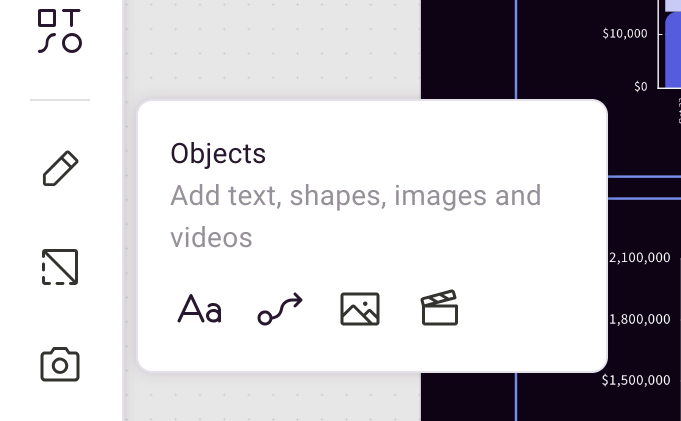
Available Drawing Objects
| Object Type | Purpose | Use Cases |
|---|---|---|
| Text Blocks | Add titles, descriptions, annotations | Headlines, explanatory text, callouts |
| Lines & Arrows | Connect elements, draw attention | Flowcharts, annotations, emphasis |
| Images | Add logos, diagrams, photos | Branding, context, illustrations |
| Videos | Embed video content | Training, demonstrations, context |
| Shapes | Create backgrounds, highlights | Visual organization, emphasis |
Adding Drawing Objects
- Open your canvas in edit mode
- Click + Add from the toolbar
- Select the object type you want to add
- Click on the canvas to place it
- Resize and position as needed
Rich Text
Text blocks in Scoop support comprehensive formatting options:

Text Formatting Options
| Feature | Options |
|---|---|
| Font | Multiple typefaces available |
| Size | From small captions to large headlines |
| Style | Bold, italic, underline, strikethrough |
| Color | Full color palette for text |
| Alignment | Left, center, right, justified |
Paragraph Features
- Bulleted lists: Organize points clearly
- Numbered lists: Sequential steps or rankings
- Indentation: Create hierarchy
- Line spacing: Control density
- Tables: Structured data within text blocks
Common Text Uses
| Use Case | Example |
|---|---|
| Title | "Q4 Sales Performance" |
| Subtitle | "Revenue by Region and Product Line" |
| Annotation | "Note: Excludes returns" |
| Callout | "↑ 23% vs. Prior Year" |
| Description | Explanatory paragraph below a chart |
Lines and Arrows
Connect elements and draw attention with lines and arrows.
Line Types
- Straight lines: Clean connections
- Arrows: Directional indicators
- Connectors: Link related elements
Styling Options
- Color: Match your theme
- Thickness: From hairline to bold
- Style: Solid, dashed, dotted
- Arrowheads: Single, double, or none
Common Uses
- Point to key data points
- Connect related visualizations
- Create flowcharts
- Indicate trends or movement
Images
Add visual context with images.
Supported Formats
- PNG (recommended for logos)
- JPEG (photos)
- SVG (scalable graphics)
- GIF (simple animations)
Image Uses
| Use Case | Example |
|---|---|
| Logo | Company branding in corner |
| Product photos | Context for sales data |
| Diagrams | Process flows, org charts |
| Icons | Visual indicators |
| Screenshots | Reference to source systems |
Image Best Practices
- Use high-resolution images for clarity
- Keep file sizes reasonable for performance
- Maintain consistent sizing across similar images
- Consider transparent backgrounds for logos
Videos
Embed video content directly in your canvas.
Video Sources
- Upload video files
- Embed from YouTube
- Embed from Vimeo
Video Uses
- Training content accompanying data
- Product demonstrations
- Executive messages
- Context videos
Video Considerations
- Videos play within the canvas
- Control playback (play, pause, volume)
- Consider autoplay settings for presentations
- Test video performance before presenting
Layering and Positioning
Z-Order (Front to Back)
Objects can be layered:
- Send to Back: Place behind other objects
- Bring to Front: Place on top
- Send Backward/Forward: Move one layer at a time
Alignment
Align multiple objects:
- Align left, center, right
- Align top, middle, bottom
- Distribute evenly
Grouping
Group related objects to:
- Move them together
- Resize proportionally
- Maintain relationships
Design Tips
Visual Hierarchy
Create clear hierarchy with:
- Larger text for titles
- Smaller text for details
- Bold for emphasis
- Color for categories
Whitespace
- Don't overcrowd your canvas
- Leave breathing room around elements
- Use whitespace to group related items
Consistency
- Use consistent fonts throughout
- Match colors to your theme
- Align elements to a grid
- Keep similar objects the same size
Branding
- Add logo in consistent position
- Use company colors
- Follow brand guidelines for fonts
- Maintain professional appearance
Troubleshooting
Text Not Displaying Correctly
- Check font is supported
- Verify text color contrasts with background
- Ensure text box is large enough
Images Not Loading
- Verify file format is supported
- Check file size isn't too large
- Confirm image URL is accessible
Objects Overlapping Unexpectedly
- Check z-order (bring to front/send to back)
- Verify object positions
- Use alignment tools to organize
Related Topics
- What is a Canvas - Canvas overview
- Interactive Charts - Data visualizations
- Presenting a Canvas - Presentation mode
- AI-Generated Color Themes - Visual theming
Updated 11 months ago
Did this page help you?