

Upload a File or Spreadsheet
The fastest way to start analyzing your data in Scoop
Uploading files into Scoop Analytics is the fastest way to get started exploring your data. Whether your information is stored in CSV, Excel, or a similar spreadsheet format, Scoop makes it easy to preview, clean, and ingest data right from your browser—no technical skills required.
Supported File Formats
| Format | Extension | Notes |
|---|---|---|
| CSV | .csv | Comma-separated values (most common) |
| Excel | .xlsx | Modern Excel format (recommended) |
| Excel Legacy | .xls | Older Excel format (supported) |
| Tab-Separated | .tsv | Tab-delimited files |
| Google Sheets | URL | Paste shareable link |
File Size Limits
| Upload Method | Maximum Size | Maximum Rows |
|---|---|---|
| Browser Upload | 50 MB | ~200,000 rows |
| Large File Upload | Contact support | Millions of rows |
Step-by-Step Upload Process
Step 1: Start Upload
Open the Datasets page and click New Dataset. Select Upload File as the source:
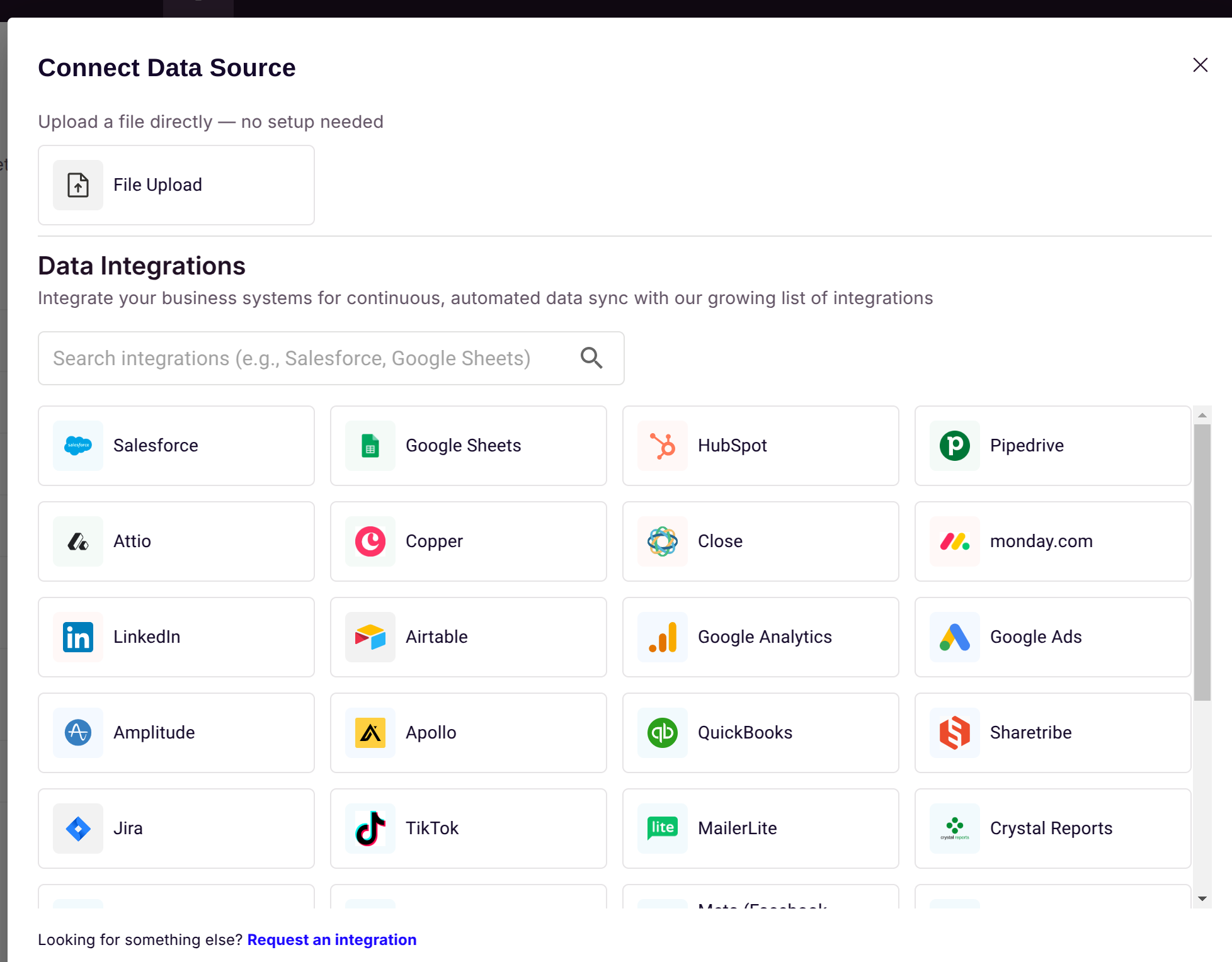
Two ways to upload:
- Drag and drop your file into the upload area
- Click Browse to select from your computer
Step 2: Preview and Validate
Scoop automatically scans your file and shows a preview:
| Detection | What Scoop Does |
|---|---|
| Headers | Identifies column names from first row(s) |
| Data Types | Recognizes numbers, dates, text, currencies |
| Formatting | Handles various regional formats |
| Issues | Highlights potential problems |
Adjusting Detection
If Scoop's automatic detection needs adjustment:
| Issue | Solution |
|---|---|
| Wrong header row | Click header row selector, choose correct row |
| Incorrect data type | Click column type dropdown, select correct type |
| Date format ambiguous | Select specific date format (MDY, DMY, etc.) |
| Exclude columns | Uncheck columns you don't need |
Tip: If Scoop highlights a date column in orange, it detected ambiguous dates. Click the column type dropdown and pick the correct format.
Step 3: Name and Confirm
- Give your dataset a clear, descriptive name you'll recognize later
- Review the preview one more time
- Click Confirm Upload
Scoop will:
- Process all rows
- Scan for data quality issues
- Load valid data into your workspace
- Take you to the data explorer
Step 4: Start Analyzing
Once uploaded, you can immediately:
- Ask questions in natural language
- Create visualizations
- Add calculated columns
- Set up snapshotting (for recurring uploads)
What Happens After Upload
| Stage | What Occurs |
|---|---|
| Processing | File parsed, data types assigned |
| Validation | Quality checks, issue detection |
| Ingestion | Data loaded into Scoop |
| Indexing | AI learns about your data |
| Ready | Full analysis capabilities available |
AI Understanding
After upload, Scoop's AI:
- Analyzes column relationships
- Identifies potential metrics and dimensions
- Suggests relevant visualizations
- Prepares for natural language queries
Advanced Options
Handling Multiple Sheets
For Excel workbooks with multiple tabs:
| Approach | When to Use |
|---|---|
| Select specific sheet | Only need one tab's data |
| Upload multiple times | Need each tab as separate dataset |
| Combine first | Pre-merge sheets before upload |
Tip: Summary sheets, pivot tables, and chart sheets often cause issues. Focus on raw data tabs only.
Date Parsing
Scoop handles various date formats:
| Format | Example | Scoop Detection |
|---|---|---|
| ISO | 2024-01-15 | Automatic |
| US | 01/15/2024 | Automatic |
| European | 15/01/2024 | May need selection |
| Mixed | Various | Requires attention |
Best Practice: Use consistent date formats throughout your file.
Character Encoding
| Encoding | Support | Notes |
|---|---|---|
| UTF-8 | ✅ Recommended | Best compatibility |
| UTF-16 | ✅ Supported | Windows exports |
| ASCII | ✅ Supported | Basic text |
| Latin-1 | ✅ Supported | European characters |
If you see garbled characters, re-save your CSV as UTF-8.
Special Characters
Scoop supports non-ASCII characters including:
- International characters (é, ñ, ü, etc.)
- Currency symbols (€, £, ¥)
- Emojis (in data values)
File Preparation Best Practices
Before Uploading
| Practice | Why |
|---|---|
| Single header row | Ensures correct column detection |
| Remove merged cells | Prevents parsing issues |
| Delete summary rows | Avoids double-counting |
| Clean trailing spaces | Improves matching accuracy |
| Use consistent formats | Enables proper type detection |
Recommended File Structure
✅ Good Structure:
Row 1: Column Headers
Row 2+: Data rows only

❌ Avoid:
- Multiple header rows
- Merged cells
- Embedded charts
- Footer/total rows
- Blank rows in middle
Optimizing Large Files
For files approaching size limits:
| Optimization | How |
|---|---|
| Remove unused columns | Keep only relevant data |
| Filter rows | Limit to needed date range |
| Split by category | Create separate files |
| Compress formulas | Replace with values |
Common Troubleshooting
File Won't Upload
| Symptom | Solution |
|---|---|
| Upload fails immediately | Check file size (max 50 MB) |
| Format not recognized | Ensure extension is .csv, .xls, or .xlsx |
| Stuck processing | Remove password protection or encryption |
| Browser timeout | Try smaller file or different browser |
Wrong Header Row Detected
- Open preview options
- Select the correct row as header
- Re-confirm column names
Garbled Characters
- Open file in Excel or text editor
- Save As → Choose CSV UTF-8
- Re-upload the new file
Date Columns Not Detected
| Issue | Fix |
|---|---|
| Mixed formats | Standardize all dates to one format |
| Extra spaces | Remove leading/trailing spaces |
| Text dates | Convert to actual date values |
| Regional ambiguity | Explicitly select format in preview |
Blank Rows/Columns Imported
- In preview, uncheck empty columns
- Scroll to bottom to verify no footer rows
- Check for hidden rows in source file
Data Types Incorrect
| Problem | Solution |
|---|---|
| Numbers as text | Check for currency symbols, spaces |
| Dates as text | Verify date format consistency |
| Text truncated | Check for line breaks in cells |
After Upload: Next Steps
Immediate Actions
| Action | Purpose |
|---|---|
| Review data | Verify all rows imported correctly |
| Check types | Confirm data types are appropriate |
| Add descriptions | Document column meanings |
| Start asking questions | Test with natural language queries |
For Recurring Data
If you'll upload updated versions of this file:
| Approach | Use Case |
|---|---|
| Replace dataset | Overwrite with new data |
| Append data | Add new rows to existing |
| Data Email | Automate with email ingestion |
See Data Email Ingestion to automate recurring file uploads.
For Multiple Related Files
If you have data in multiple files:
| Scenario | Solution |
|---|---|
| Same structure, different periods | Append or create time series |
| Different structures, related data | Create blended dataset |
| Lookup tables | Upload separately, use in blends |
See Blending Datasets to combine files.
Related Topics
- Choose a Data Source - All connection options
- Data Email Ingestion - Automate file ingestion
- Best Practices for Source Reports - Optimize your data
- Adding Calculated Columns - Enhance uploaded data
- Snapshot Datasets - Track changes over time
Updated 10 months ago