# Interactive Charts and Tables
Add live, drillable visualizations to your canvas
Charts and tables on your canvas aren't static images—they're live, interactive elements connected to your data. Users can drill down, filter, and explore without leaving your presentation.
# Adding Charts and Tables
## From Explorer
Create visualizations in Explorer, then add them to your canvas:
1. Build your chart or table in Explorer
2. Click **Save** and name the visualization
3. Open your canvas in edit mode
4. Click **+ Add** → **Insight** (for charts) or **Worksheet** (for tables)
5. Select your saved visualization
## Result on Canvas
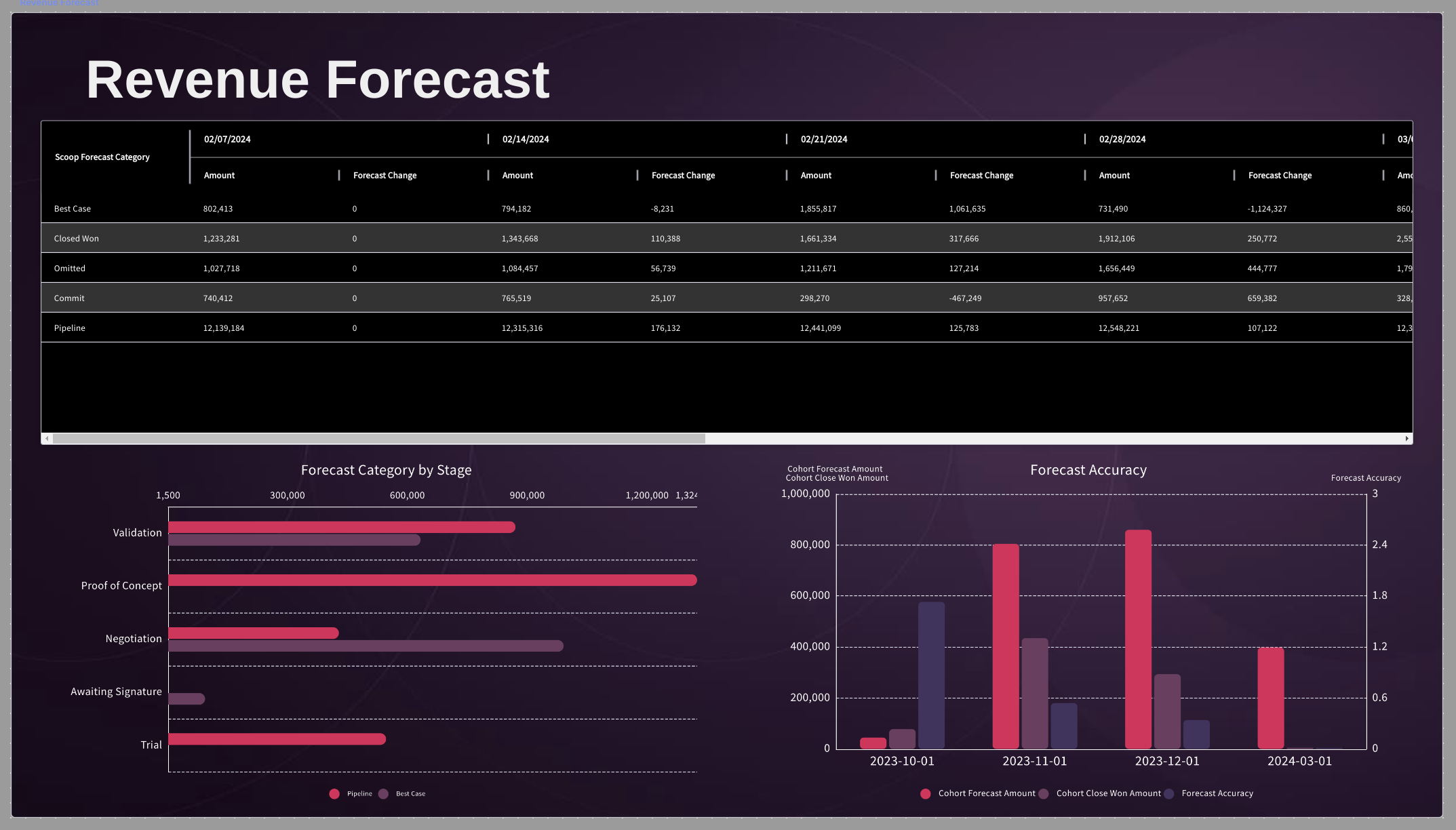
Your visualization appears as an interactive element:
# Drilling Into Data
Because visualizations are backed by full datasets, you can drill into any dimension present in the source data.
## How to Drill
1. Click on any element (bar, slice, point, row)
2. A drill menu appears with available dimensions
3. Select the attribute to drill by
4. The visualization updates to show the breakdown
## Drill Example
**Starting view:** Revenue by Region
**Click:** West region bar
**Drill by:** Sales Rep
**Result:** West region revenue broken down by each rep
## Drill Navigation
- **Breadcrumbs:** Track your drill path (upper left)
- **Back:** Click breadcrumb to return to previous level
- **Reset:** Click first breadcrumb to return to original view
- **Multiple drills:** Continue drilling deeper (Region → Rep → Deal)
# Available Drill Dimensions
You can drill by any attribute in your source dataset:
| Category | Example Dimensions |
|----------|-------------------|
| **Organization** | Region, Department, Team |
| **People** | Rep, Manager, Customer |
| **Time** | Month, Quarter, Week |
| **Product** | Category, SKU, Line |
| **Status** | Stage, Type, Priority |
**Note:** Only columns included in your dataset appear as drill options.
# Chart Types That Support Drilling
| Chart Type | Drill Behavior |
|------------|----------------|
| **Bar Chart** | Click any bar to drill |
| **Line Chart** | Click any point to drill |
| **Pie/Donut** | Click any slice to drill |
| **Area Chart** | Click any area segment |
| **Table** | Click any row to drill |
| **KPI** | Click the metric to see breakdown |
# Interactivity During Presentations
When presenting a canvas, all interactivity remains active:
## Live Exploration
- Click charts to drill during your presentation
- Audience can ask "show me more detail" and you can drill in real-time
- No need to switch to other tools or applications
## Data Updates
- Visualizations reflect latest data sync
- Present with confidence that numbers are current
- Changes made to source data appear automatically
## Collaborative Exploration
When sharing a canvas with others:
- They can drill and explore independently
- Each user's exploration is independent
- Original visualization remains unchanged
# Linking Charts and Tables
Create connected dashboards where selections in one element affect others:
## Using Prompts for Cross-Filtering
1. Add a prompt to your canvas (e.g., Region selector)
2. Link multiple charts/tables to that prompt
3. When a user selects "West," all linked elements filter
See [Prompts](prompts) for detailed setup instructions.
## Drill Relationships
When charts share the same dataset:
- Drilling on one provides context for others
- Use this for investigation-style dashboards
- Combine overview charts with detail tables
# Best Practices
## Design for Exploration
- Include multiple drill dimensions in your datasets
- Don't over-filter source data—keep dimensions available
- Add columns that enable meaningful breakdowns
## Visual Cues
- Add "Click to drill" labels during onboarding
- Use consistent chart types for similar data
- Position related charts near each other
## Performance
- Large datasets may take a moment to drill
- Consider pre-aggregating very large sources
- Test drill performance before presenting
## Dashboard Layout
```
┌────────────────────────────────┐
│ Overview Chart (drillable) │
├──────────────┬─────────────────┤
│ Detail │ Detail │
│ Chart 1 │ Table │
│ (drillable) │ (drillable) │
└──────────────┴─────────────────┘
```
# Troubleshooting
## No Drill Options Appear
- Verify dataset has additional columns beyond what's charted
- Check that columns are included (not excluded) in dataset settings
- Ensure you're clicking directly on a chart element
## Drill Shows Unexpected Results
- Check if filters are applied to the visualization
- Verify the drill dimension has data for the selected element
- Look for null values that may not group correctly
## Chart Doesn't Update
- Refresh the canvas
- Check dataset sync status
- Verify source data has changed
# Related Topics
- [Prompts](prompts) - Add filter controls to your canvas
- [Sheetlets](sheetlets) - Include editable spreadsheet data
- [KPI Summaries](kpi-summaries) - Highlight key metrics
- [Presenting a Canvas](../presenting-a-canvas) - Present with live data